
Photo Shop 2024
 Step By Step Process.
How To Change Language Preferences In Photoshop.

Step 1: Open The Preferences Window
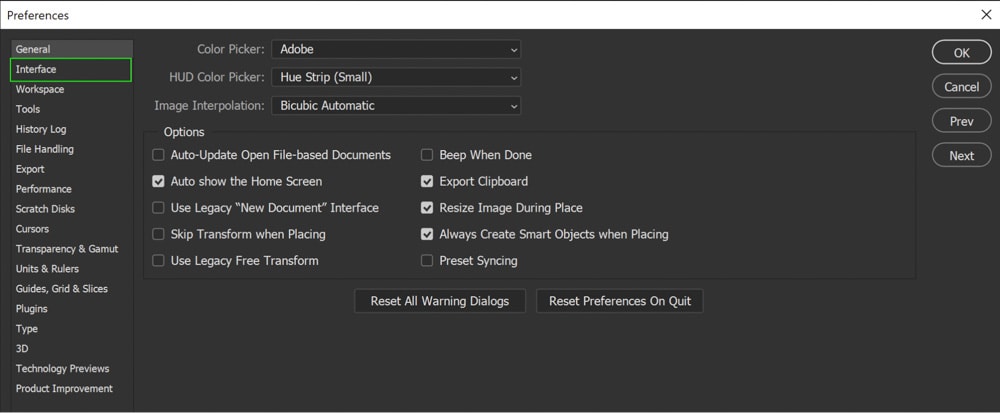
Open Photoshop, and navigate to Edit > Preferences > General (Win) or Photoshop > Preferences > General (Mac).

Step 2: Open The Interface Tab
In the Preferences window, click Interface from the left-hand panel.
Step 3: Change The UI Language Under The Presentation Section
In the Interface window, go down to Presentation and select the language you wish to use from the UI Language dropdown menu.
ఇంటర్ఫేస్ విండోలో, ప్రెజెంటేషన్కి వెళ్లి, UI లాంగ్వేజ్ డ్రాప్డౌన్ మెను నుండి మీరు ఉపయోగించాలనుకుంటున్న భాషను ఎంచుకోండి.
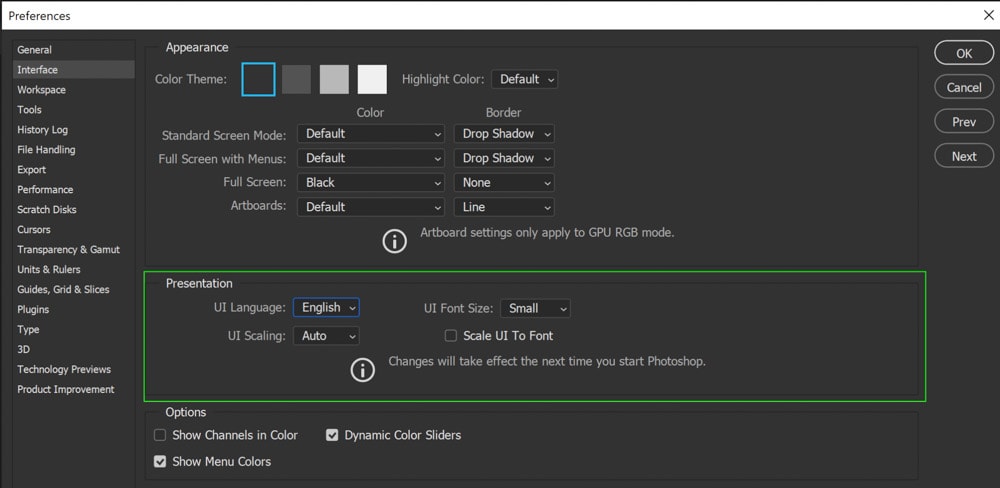
If you don’t see the language you want to use, you haven’t installed it in Creative Cloud — so you need to follow the process in the next section to install the desired language.
మీరు ఉపయోగించాలనుకుంటున్న భాష మీకు కనిపించకపోతే, మీరు దానిని క్రియేటివ్ క్లౌడ్లో ఇన్స్టాల్ చేయలేదు - కాబట్టి మీరు కావలసిన భాషను ఇన్స్టాల్ చేయడానికి తదుపరి విభాగంలోని ప్రక్రియను అనుసరించాలి.
How To Change The Language Of All Creative Cloud Apps
To change the language of subscription versions of Photoshop, you must first change the language in the Creative Cloud desktop application. If you have more than just Photoshop installed from the Creative Cloud apps, making the language adjustment can also help change the language universally for all the apps.
Just note that you need to uninstall and reinstall all the applications for the language change to take effect. This is because changing the language is for future installations rather than the current ones.
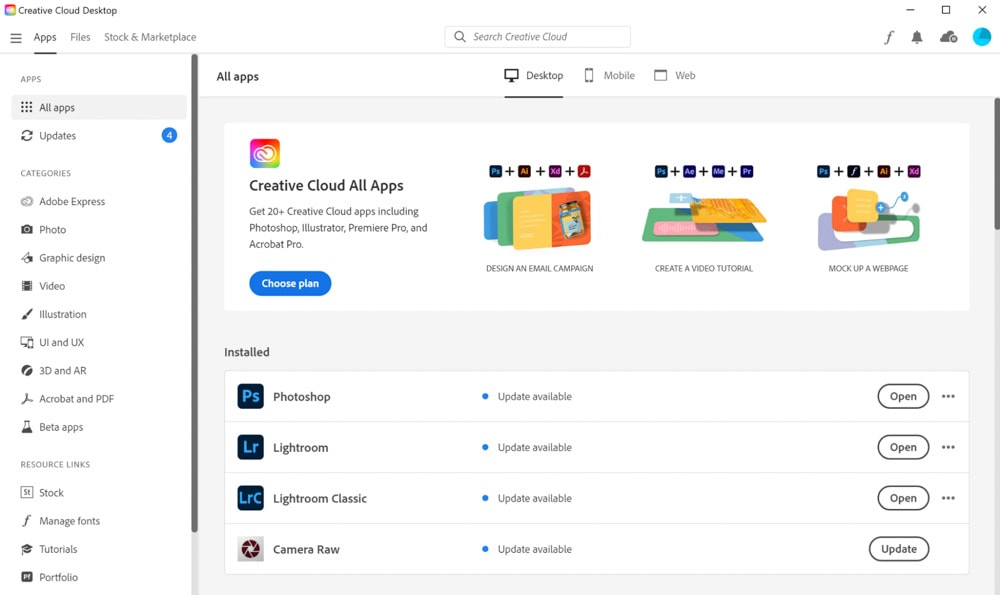
First, make sure your Creative Cloud desktop app is open.
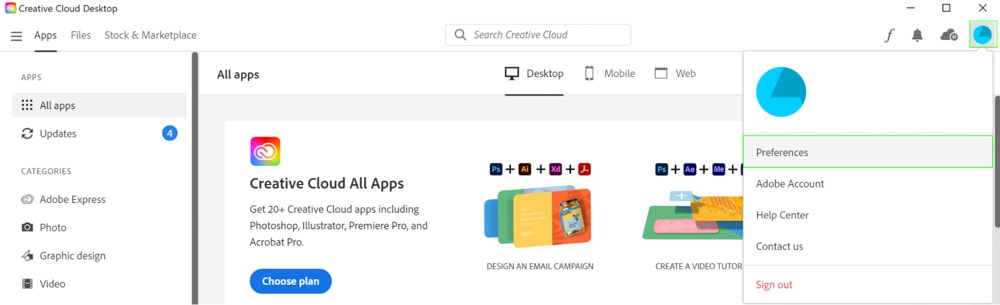
Next, click the Account icon and select Preferences. The Preferences window contains your settings adjustments, just like in Photoshop.
తర్వాత, ఖాతా చిహ్నాన్ని క్లిక్ చేసి, ప్రాధాన్యతలను ఎంచుకోండి. ప్రాధాన్యతల విండో ఫోటోషాప్లో వలె మీ సెట్టింగ్ల సర్దుబాట్లను కలిగి ఉంటుంది.
In the Preferences window, navigate to Apps on the left-hand side.
ప్రాధాన్యతల విండోలో, ఎడమ వైపున ఉన్న యాప్లకు నావిగేట్ చేయండి.
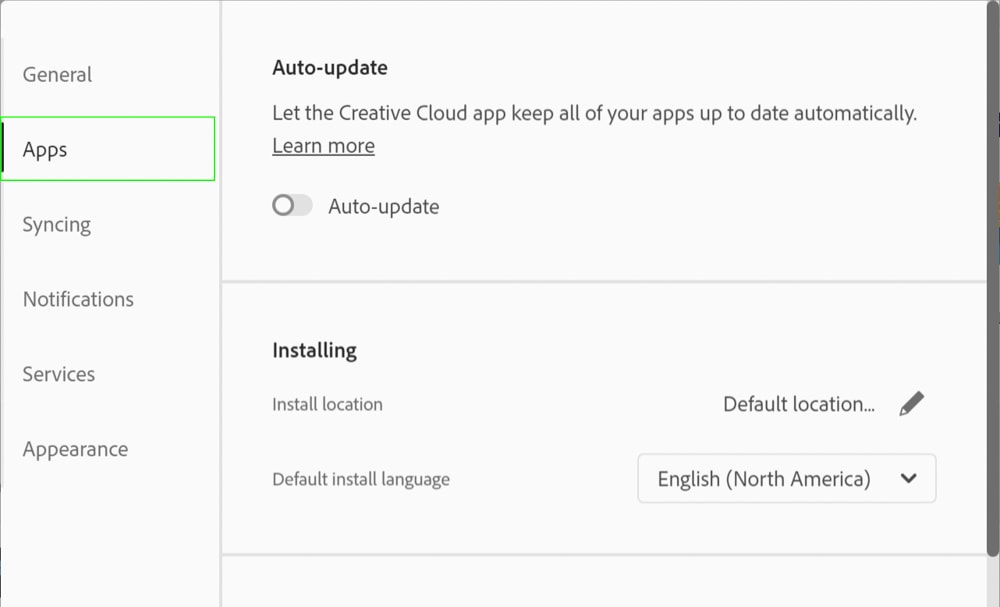
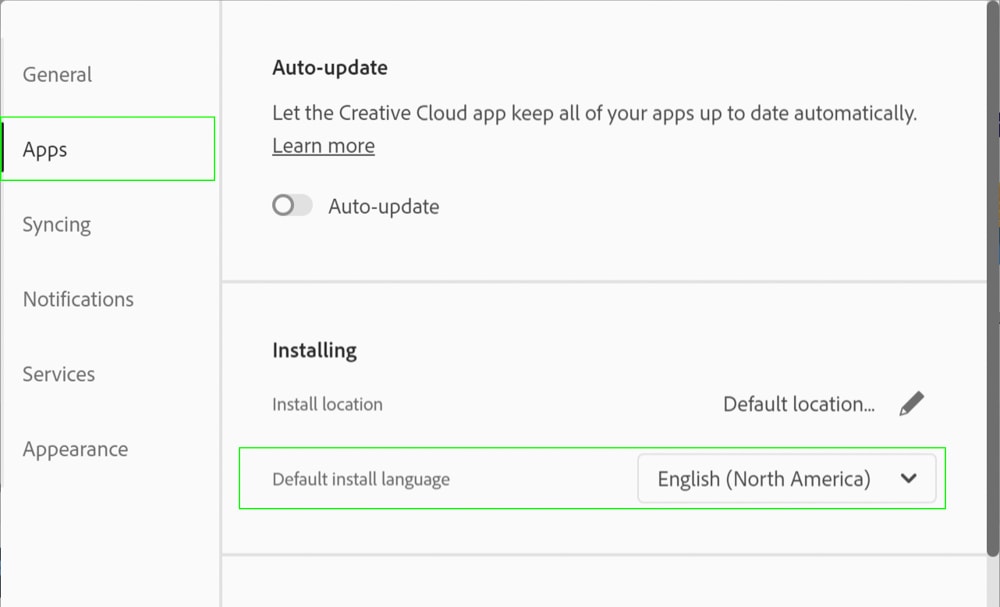
Under the Installing section (you may need to scroll down to find it), you’ll find a dropdown menu for Default Install Language. Change this to whatever language you prefer, click Done, and that’s it.
ఇన్స్టాల్ చేసే విభాగం కింద (దీనిని కనుగొనడానికి మీరు క్రిందికి స్క్రోల్ చేయాల్సి ఉంటుంది), మీరు డిఫాల్ట్ ఇన్స్టాల్ లాంగ్వేజ్ కోసం డ్రాప్డౌన్ మెనుని కనుగొంటారు. దీన్ని మీరు ఇష్టపడే భాషకు మార్చండి, పూర్తయింది క్లిక్ చేయండి మరియు అంతే.
After making the above changes in Creative Cloud, you can uninstall and reinstall Photoshop for the change to come into effect (just remember to back up your preferences before doing so).
క్రియేటివ్ క్లౌడ్లో పై మార్పులను చేసిన తర్వాత, మార్పు అమలులోకి రావడానికి మీరు ఫోటోషాప్ను అన్ఇన్స్టాల్ చేసి మళ్లీ ఇన్స్టాల్ చేయవచ్చు (అలా చేయడానికి ముందు మీ ప్రాధాన్యతలను బ్యాకప్ చేయాలని గుర్తుంచుకోండి).
.jpg)


0 Comments